

How to Enable Quiet Mode on Adobe Photoshop
20 Nov 2025

Did you know Adobe Photoshop offers a “Quiet Mode” feature that aims to hush and silence all of the distracting alerts, pop-ups, and notifications within the app? I didn’t either, but this feature is fantastic if you want to get things done without all the distractions.
Adobe Photoshop is a powerful image editor with many capabilities and remains the industry standard, but it also has tons of frustrating pop-ups, alerts, and notifications, that can really get in your way while you’re trying to work in Photoshop. Even Adobe must know these alerts, warnings, and pop-ups are annoying and intrusive, because they offer a little-known feature called “Quiet Mode” that aims to reduce all the in-app nuisances and notifications, to what they consider to be only essential notifications. Why this isn’t the default, who knows, but with a little settings adjustment, you can have fewer annoyances and better focus while you work in Photoshop.
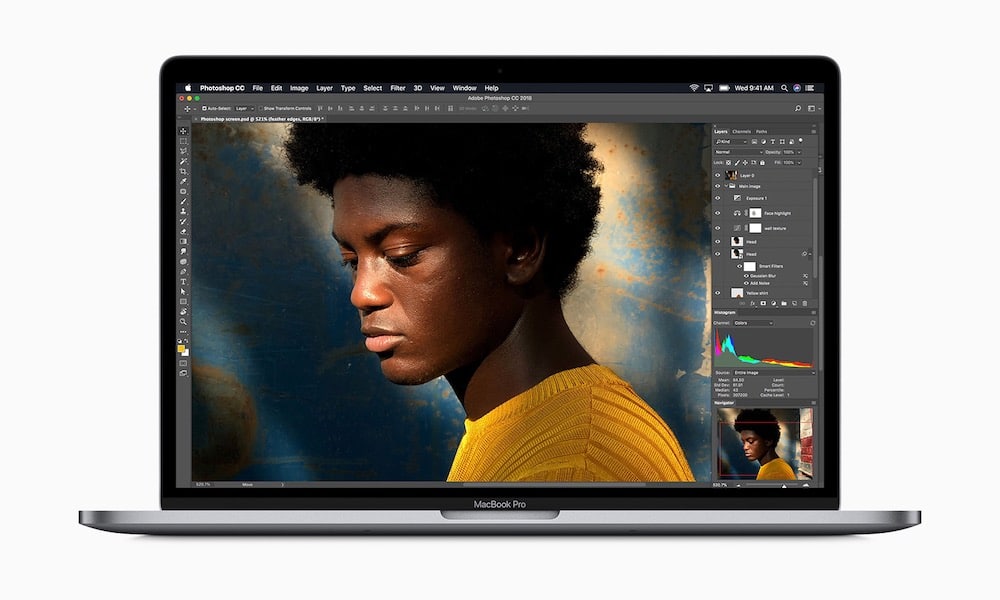
How to Enable Quiet Mode on Adobe Photoshop
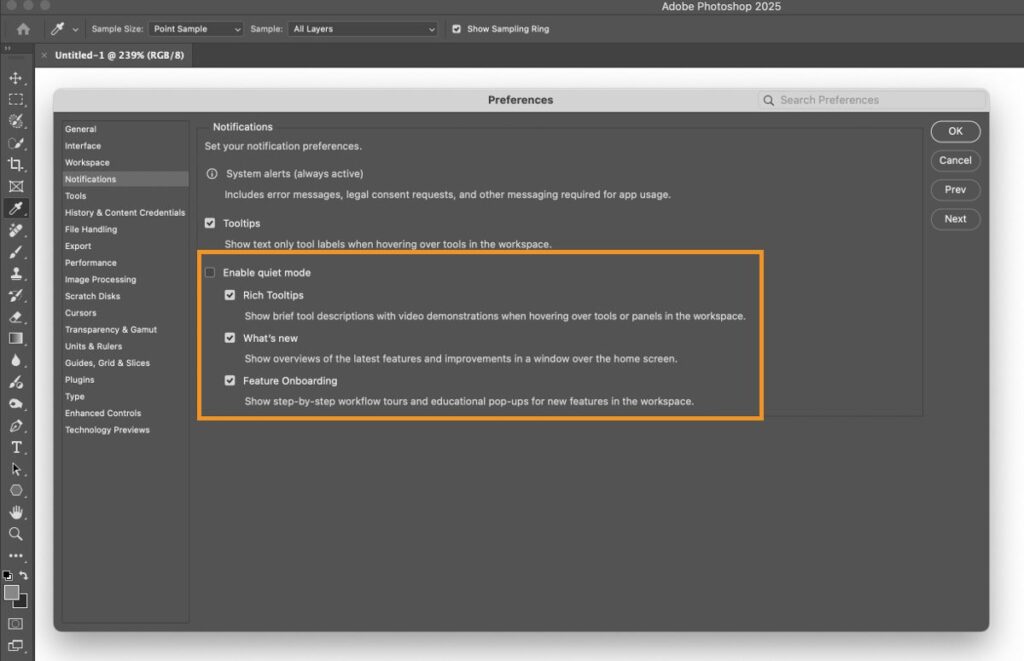
- Open Photoshop, then go to the Photoshop menu and choose “Preferences” (or hit Command+K)
- Go to “Notifications” and check the box for “Enable quiet mode”
- Close Preferences and focus a bit better
There you go, now Photoshop will pester you a little less as you work, launch the app, and engage with its features.
Share:
Services
More Services
Contact Imagetext
Phone: +64 (09) 623 3102
Level 1, 3 Owens Road,
Epsom, Auckland 1023
New Zealand
Connect With Us