
Apple Tips n Tricks
18 May 2026
Various tips and tricks to help you get the most from your Apple devices… if you have any great tips or suggestion you would like to share, email: brian.gibbs@imagetext.co.nz
iPhone Storage:
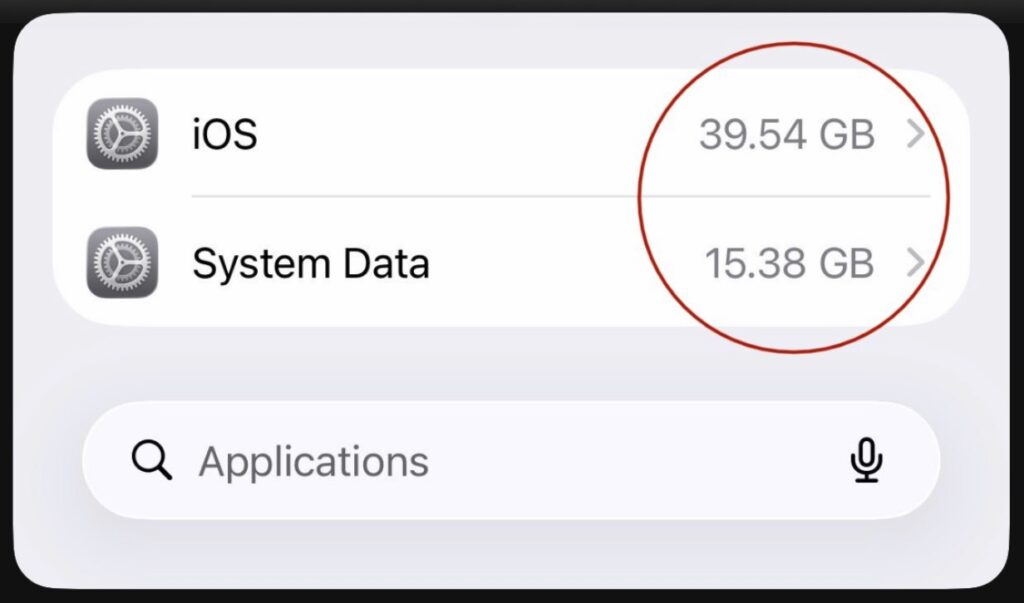
This is a common iPhone issue and yes, there are effective ways to free up space. Here are three tested and proven methods:
1. Force-restart your iPhone
This forces iOS to purge temporary caches.
• Volume Up → release
• Volume Down → release
• Hold Power until Apple logo appears
Check Settings → General → iPhone Storage after 2–3 minutes.
2. Clear Safari & in-app caches (huge impact)
Safari alone can hold multiple GBs.
• Settings → Safari → Clear History & Website Data (Then:)
• Settings → Safari → Advanced → Website Data → Remove All
3. Turn off iCloud “Keep on Device” cache
This quietly duplicates files locally.
• Settings → [Your Name] → iCloud → iCloud Drive
• Toggle OFF → Restart iPhone → Toggle ON
Apple hides its 10 best features deep within Settings.
The iPhone is one of the most expensive gadgets people buy, why not learn some of the features most people miss…Starting with the first one:
• Back Tap.
Double-tap the back of your iPhone → Automatic screenshot. Triple-tap → Open any app you want.
Enable it in: Settings → Accessibility → Touch → Back Tap
This feature has been around since iOS 14.👇
• Have you ever found text in a photo that you wanted to copy, but couldn’t be bothered to retype?
Live Text is the solution.
Point your camera at a receipt, business card, or any sign, Click the live Text icon bottom right, and copy the text instantly. This also works for older photos in your gallery.
Just tap and hold the text in the photo, then copy. 📄
A little trick that will change the way you type forever:
• Hold down the space bar when the keyboard appears. The keyboard instantly turns into a trackpad.
Swipe your finger → the cursor moves anywhere you want.
No more drama over misclicks when editing a typo in the middle of a paragraph. ⌨️
• Guests arrive and ask for the Wi‑Fi password.
You open the router, squint at the fine print, and mistype it twice.
This doesn’t have to happen. If they also use an iPhone – just hold your phone close to theirs.
A “Share Password” notification will appear. Tap it. Done.
The password doesn’t need to be visible to anyone. 🔐
• Drag & Drop between apps, a feature that seems complicated, but isn’t.
Tap and hold a photo in Gallery → swipe up with your other finger to open WhatsApp → release it in the chat. Thirty seconds of practice, and it’ll become a habit. 🔄
• Focus Mode isn’t just Silent Mode.
You can set different Home Screens for different situations.
When you’re working, only productivity apps appear.
When you’re relaxing, only social media and streaming apps appear.
So work notifications don’t get lost while you’re having dinner with the family. Settings → Focus → Customize Screens
• Text Replacement, small, but saves hundreds of keystrokes per week.
Type “omw” → automatically becomes “On my way, 5 more minutes!”
Use it for your delivery address, email signature, or frequently resent responses.
Settings → General → Keyboard → Text Replacement ⚡
• If you want to level up: “Shortcuts Automation.”
One trigger → many things run automatically.
For example: every time you plug in your charger at night, your phone can automatically turn on Do Not Disturb and open the app you want to read—without pressing anything.
“Shortcuts → Automation → New Automation” Free. Already on every iPhone.
• Have you ever bought furniture online, only to find it doesn’t fit the room?
Open the “Measure” app on your iPhone.
Point the camera at a corner of the room.
Your phone instantly becomes an Augmented Reality digital measuring tape.
It’s accurate enough for everyday use. 📐
• iOS 18 has built-in “call recording.”
While on a call, tap the “Record” button. Both parties immediately receive a notification that recording is active—transparent, no hidden messages. The recording and its “transcript” are automatically saved to “Notes” and “Voice Memos.”
No more missing important moments because you forgot to write them down. 🎙️
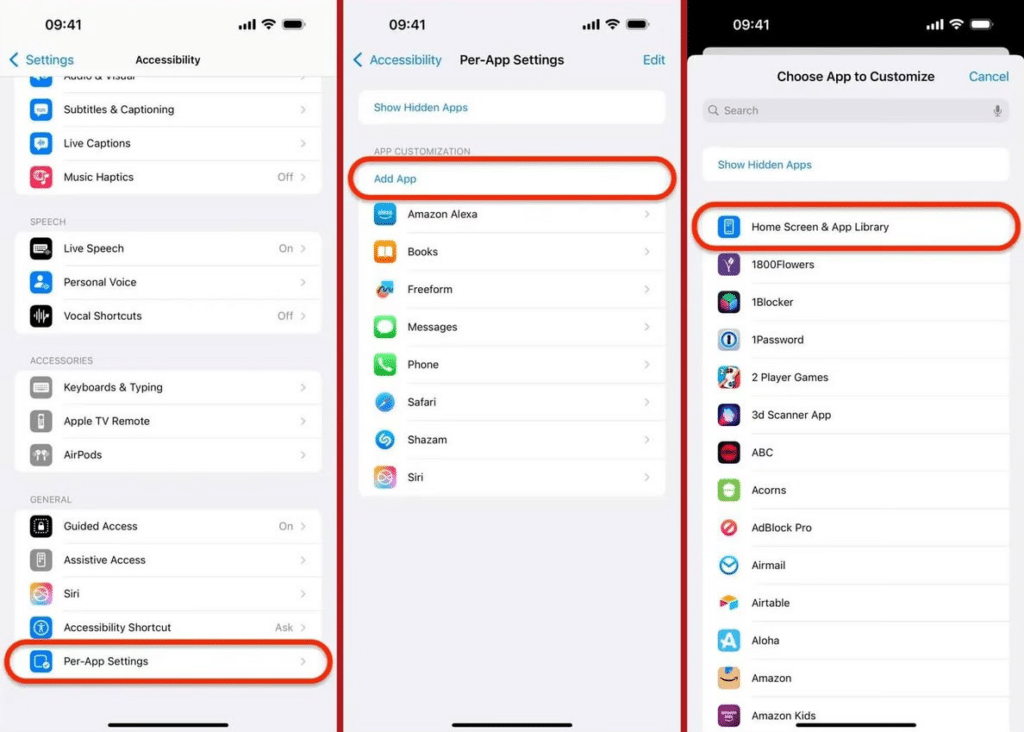
• Find hidden apps..
Per-App Settings – allow you to customize accessibility and display features on an app-by-app basis. Instead of changing settings system-wide, you can tailor your iPhone experience for individual apps (or the Home Screen) to boost readability, reduce motion, and improve accessibility.
Contact Brian Gibbs 021460488 or email: brian.gibbs@imagetext.co.nz

𝗜𝗠𝗔𝗚𝗘𝗧𝗘𝗫𝗧 𝗜𝗧 𝗦𝗣𝗘𝗖𝗜𝗔𝗟𝗜𝗦𝗧𝗦
Phone +64 9 623 3102 3 Owens Rd, Epsom, Auckland 1023, New Zealand
Services
More Services
Contact Imagetext
Phone: +64 (09) 623 3102
Level 1, 3 Owens Road,
Epsom, Auckland 1023
New Zealand
Connect With Us